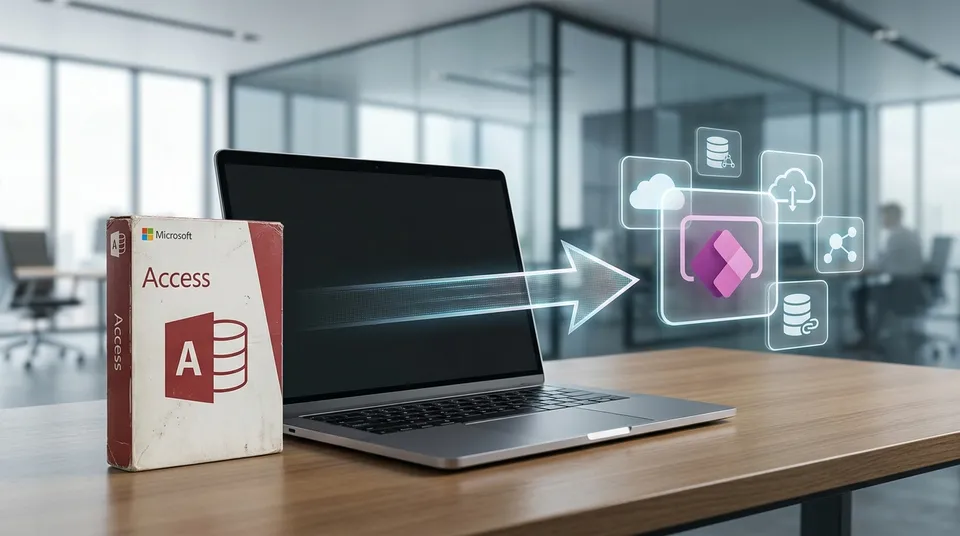
REPLACING ACCESS
Replacing your Access database: when it's time and what comes next
Your Access database still does what it's supposed to, but nobody dares to touch it anymore, and working from outside the office isn't an option. The real question is: does it still fit the way you work today?

On this page
▾


Talk to us about your Access database
Tell us what's in your database and where it's falling short. We'll let you know which route fits, and also when you're better off changing nothing.
Tell us about your situationIn short
The biggest risk is rarely technical. In most cases, it's the person who knew the database and isn't around anymore.
Access hasn't been written off. Microsoft keeps investing in the desktop version, and for a small application with few users it's still a defensible choice.
The hard limits are 2 GB per file for everything combined, 255 fields per table, and 255 concurrent users on paper. In practice, it usually starts to pinch much sooner.
There are three ways to replace an Access database, and they don't all take you equally far. Only a full move to Power Apps also solves mobility, permissions, and dependency.
We did this for a company that certifies building materials. The database itself wasn't the problem there. The problem was that nobody could change it anymore.
Where it starts to pinch
Almost every Access database we come across starts with the same story. There was a problem, someone knew how to use Access, and within a few weeks there was something better than the spreadsheets people had been using until then. That wasn't a bad decision. That's exactly what Access was made for. The problem is that the organization has changed since then, and the file hasn't.
Does any of this sound familiar?
The person who set it up isn't around anymore. In almost every case, this is the real problem, and it's the one people talk about least. Nowhere is it written down how the database was originally built, and many users don't even know there are macros running behind the scenes. Every request for a change now gets the answer "we could, but we'd better not touch it." The person who built it has since retired. Time to let Access retire too.
Everyone has to get out before you can change anything. If you want to add a field or update a report, you first have to ask all your colleagues to close the file. That turns a half-hour change into half a day.
The file is hitting its ceiling. An Access file can be no larger than 2 GB, and that includes everything: the data, the forms, the reports, and the macros. Long before you reach that limit, the database gets slow and unpredictable, and compacting and repairing it has already become a routine.
It slows down with multiple users at once. The specs say 255 concurrent users. That number says nothing about what's actually workable. On a network drive where people are really writing data, you see forms that take seconds to open, rows that stay locked, and every now and then a file that ends up corrupted.
Working from home or on the road doesn't work. If you want to get your Access database online, this is where you hit a wall: Access was built for a local network. Outside the office, you either work through a remote connection or a virtual desktop, or you don't work at all. Entering something on a phone while on the road just isn't possible, so people call the office staff or write it down on paper.
Anyone who can open the file sees everything and can take everything. Setting permissions per user in an Access file is next to impossible. Anyone with access to the folder sees all customers, all prices, and all margins. That same person can also copy the entire file in one go. An employee who leaves can walk off with your entire customer database with a single drag and drop.
Spreadsheets have grown up around the database. Whatever the database couldn't do has grown up alongside it over the years: a color-coded file to track something, a report that gets exported and emailed every Monday, a copy someone maintains on the side. Our clients call that duct tape themselves.
The backup is a copy with the date in the file name. And nobody knows for sure whether last night's backup actually ran.
What if your Access database were online?
Suppose that same data wasn't in a file on a network drive, but in a database Microsoft manages for you. Then every point above changes.
The knowledge no longer lives in one person's head. The data model is documented, the rules are readable, and several people in the organization can make small changes themselves without breaking anything. That also makes you less dependent on us.
You no longer have to ask anyone to get out. A new field or an updated overview goes live while your office staff keeps working.
The size of your database is no longer a concern, and you can forget all about compacting and repairing.
The sales rep who calls the office today to pass something on enters it on their phone, on the spot. Their colleague in the office sees it two seconds later, and nobody has to retype anything.
Working from home feels the same as working at the office. You open a browser, sign in with the same login you use for your email, and you're in. No remote connection, no virtual desktop, no separate password someone has to manage.
Everyone sees exactly what they're allowed to see. A case manager gets their own cases, a sales rep their own customers, and the managing director the whole picture. You set that up once, and from then on it applies everywhere, including in overviews and reports. Taking what isn't yours is no longer possible.
The system starts thinking ahead. An inspection that expires next month, a contract that's ending, or a case that's been stuck at the same step for three weeks automatically lands with the right person. Nobody has to remember it or track it somewhere on the side. To see what that looks like for inspections and work orders, check out our service app for installation and maintenance.
You no longer need an overview in a spreadsheet. The overview lives in the application itself, it's always up to date, and everyone's looking at the same thing. That also ends the debate about which version is the right one.
Backups run on their own and you don't have to think about them anymore. On top of that, you can see who made every change and when. During an audit or a dispute with a customer, that suddenly turns out to be very useful.
What's the alternative to Access?
If you're looking for an alternative to Access in the Microsoft world, you'll end up with the Power Platform: Dataverse as the database and Power Apps for the screens. Everything in the previous section is simply how things work there. The only question is which path you take to get there. Three routes come up in practice, and they don't all take you equally far.
Route 1. Data to SQL Server, Access stays the front end
You move the tables to a SQL Server and link them in Access. That solves the slowness and the instability, and the 2 GB limit disappears. Nothing changes in the way people work.
But be aware of what this doesn't solve. The screens stay in Access, so they're still tied to a Windows computer on the network. Working on a phone is still impossible, you still handle per-user permissions in the screens themselves, and the macros nobody dares to touch are still there after the migration. You've replaced the foundation and left the house standing.
We don't offer this route. If your application only struggles with size and speed and nobody needs to work on the go, it's defensible and a lot cheaper. If you recognized yourself in the section above, though, this mostly buys you time, and it remains a less sustainable solution than route 3.
Route 2. Data to Dataverse, Access keeps the screens
Dataverse is the database underneath Power Apps and Dynamics 365. Access has a built-in migration tool that moves your tables, relationships, and data. What's less well known is that your employees can then keep using their existing Access screens to work with that data.
On paper, that's an attractive intermediate step, and it really does exist. In most cases, we don't recommend it. You do the work twice, and the screens remain the part you eventually want to replace anyway. The exceptions are environments with very complex forms, or with integrations you can't move over in the short term. Otherwise, you're better off going straight to route 3 in one move.
Route 3. Your Access database to Power Apps
This is where everything moves. The data and the screens go to Power Apps together. Forms and overviews are rebuilt and from then on work in a browser, on a tablet, and on a phone. The logic that lives in macros today comes back as rules on the data and as automated steps. This is the route that actually makes everything in the previous part of this article come true.
This is a full migration. Data, forms, reports, and logic all move together, and afterward there's no Access file left where anything still happens. That's more work at once, and it's also the only way to solve the dependency, mobility, and permissions issues in one go.
What we always check up front is which data types don't carry over as is. Calculated fields don't exist as a data type in Dataverse, but you can achieve the same thing with a property on the column. A unique index doesn't come along in the migration, so you set it up again afterward as an alternate key. None of these issues block a migration, but they should be mapped out in advance rather than discovered halfway through.
The space you get is in a different league from an Access file. A base license comes with 10 GB of relational database, 20 GB for files and images, and 2 GB for logs. You can buy extra capacity if you need it.
What that looks like in practice. A company that certifies building materials ran its entire case management process in an Access database that was years old. The system no longer fit the inspection process, and there was nobody left in-house who could change anything about it. So every change to the procedure was handled outside the system, with email and spreadsheets on the side. A fully custom-developed workflow was on the table. We proposed building on Power Apps instead, because forms, permission management, integrations, and security are already built in, and spending our time on what's truly unique to that organization: the case flow itself, the approvals, and the pricing calculation. External parties provide their input through a separate portal. Case turnaround times dropped significantly, and complaints dropped sharply.
When you're better off leaving your Access database alone
Access isn't being phased out. Microsoft explicitly states that it will keep investing in the desktop version, so you don't need a Microsoft Access alternative in every situation. Sometimes the honest conclusion is that you don't need to do anything.
Leave your database alone if two or three people use it in the same office, if the file stays well below 2 GB, if nobody needs to work on the go, and if there's still someone in or around the company who knows how to handle it. In that situation, a migration gets you nothing but an invoice, and we'll tell you so.
One borderline case deserves attention. Does your database still run fine technically, but nobody dares to touch it anymore? Then the problem isn't the database, it's the dependency. You solve that first and foremost with documentation and a second person who knows the data model.
The balance tips as soon as people need to work outside the office, as soon as you need per-user permissions, or as soon as the database becomes a link in a process that runs across several systems. That last one weighs the most. A database that has to work together with your accounting software, your email, and your files isn't just a file on a drive anymore.
And after that: you simply talk to it
There's one more reason not to wait too long, and it has little to do with Access.
After a migration, your data lives on a platform that knows which tables exist, how they relate to each other, which rules apply to them, and who's allowed to see what. That means you can ask questions in plain language and get an answer from your own data. Not a report someone built in advance, but the question the way you'd ask a colleague who knows everything by heart. What you type and click today, you'll simply say out loud tomorrow.
It's that description that makes this possible. A file on a network drive can never do it, because nothing in it knows what those columns mean, which row belongs to which customer, or who's allowed to see it. That's the difference between a file and a platform.
If you get your data in order now, you can take that step whenever you want. If you wait, two years from now you'll start with the same migration you could have done today.
Talk to us about your Access database
Not sure whether you should modernize your Access database, and which route fits? Tell us about your situation through the contact form.
It helps to mention:
how many people work with the database, and whether they're all in the office;
roughly how big the file is;
what's in it: customers, cases, scheduling, inventory, something else;
where exactly things are getting stuck;
whether there's still someone who can modify the database.
We'll review your situation and get in touch for a no-obligation conversation. You explain how things work today, and we'll tell you which route fits and what a project involves. Even if we conclude that you're better off leaving your database as it is.
Your details stay with us and are never passed on to other vendors.
Talk to us about your Access database
Tell us what's in your database and where it's falling short. We'll let you know which route fits, and also when you're better off changing nothing.
Tell us about your situationThis article is part of
Custom Development and Power Apps
Custom software on a secure Dataverse foundation. See our approach to apps that grow with the way your business works.
Explore Custom Development and Power AppsKeep reading

CRM AND ERP
A CRM alongside your ERP: why you don't have to keep track of anything twice
You've been working in an ERP like Business Central for years. Adding a CRM sounds like a second system where you keep track of everything twice. It doesn't have to be: agree on which system manages each piece of data, and each system does its own part.

AI IN PRACTICE
Beyond digitization: working with an AI assistant on top of your business Applications
A customer email comes in. Five minutes later, the project is set up in Connect, our in-house application, and colleagues can log hours on it. Add the tasks in Jira and it takes fifteen minutes. Meanwhile, I was drinking my coffee. That's how we've been working at Profility for a year now. This is the step after digitization.

AI IN PRACTICE
Every application you commission today needs an MCP
If you're having an application built today, whether fully custom or on the Power Platform, there's one question many clients still don't ask: does it have an MCP? Without one, an AI agent can't work for you inside that application. If you want to build for the future, it's non-negotiable.