
Profility Service
Service app for installation and maintenance
From service call to signed work order, with no paper and no retyping
A service app on Microsoft Power Apps for companies that install, maintain, and inspect equipment. Dispatchers see every service call on one board, technicians have their day, their checklist, and the work order on their phone or tablet, and the customer signs on site.
The challenge
Scheduling maintenance is a puzzle of people, buildings, and legal deadlines
The schedule lives in Excel or on a whiteboard
Work orders come in days later, sometimes illegible
Nobody notices an overdue inspection until the customer calls
Technicians show up without the equipment's service history
Parts and hours get retyped after the fact for billing
An installation company maintains hundreds of systems for dozens of customers. Smoke vents, ventilation, fire detection, emergency lighting: each with its own inspection schedule, and often a legal requirement behind it. On top of that come the breakdowns that need fixing today.
The dispatcher needs to know who knows which system, who's nearby, and what's urgent. Technicians want to see on site what was found last time, without having to call in. And the office wants a complete work order: checklist, findings, parts, hours, and a signature.
A standard scheduling package covers part of that. This demo shows what it looks like when the back office and the technicians work from the same data model, built around how a maintenance company actually operates: customer, site, installation, service call.
How it works
Seven screens, from service call to work order
1
Everything that needs attention, at a glance
As soon as they open the app, the back office sees what's going on: open breakdowns and how urgent they are, what still needs to be scheduled, which inspections are past due, how booked up the team is over the next few days, and which contracts expire soon. Each line opens the job, the installation, or the contract directly.
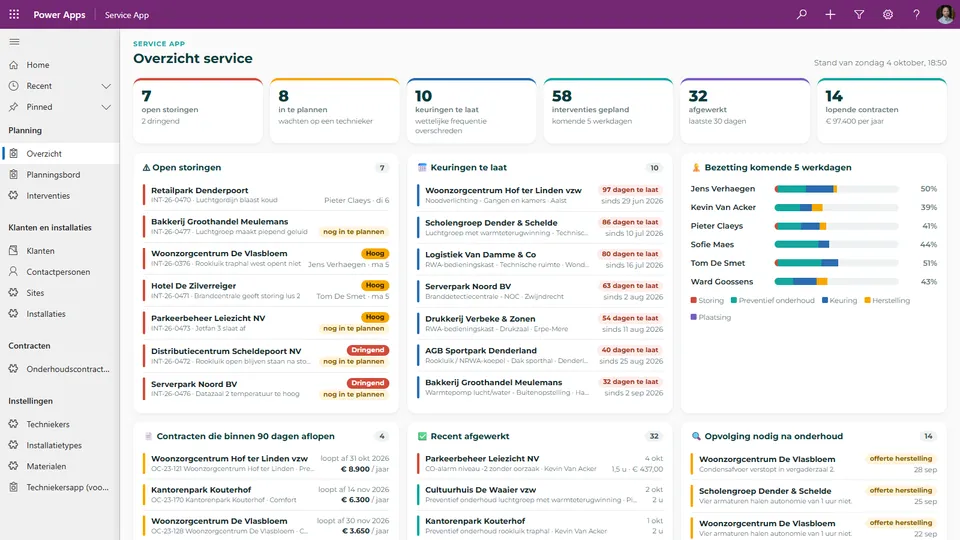
Breakdowns, overdue inspections, and workload on one screen.
2
Drag-and-drop scheduling
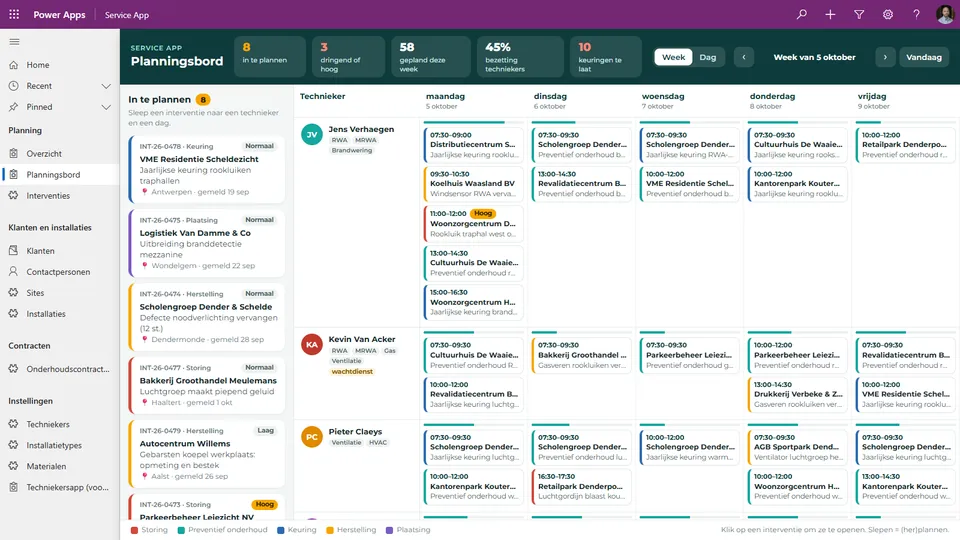
On the left are the jobs that don't have a technician yet, with their type, priority, and town. The scheduler drags them to a technician and a day, or switches to the day view to schedule them by the hour. Each technician's skills are listed, so a fire alarm panel inspection doesn't end up with someone who only does ventilation.
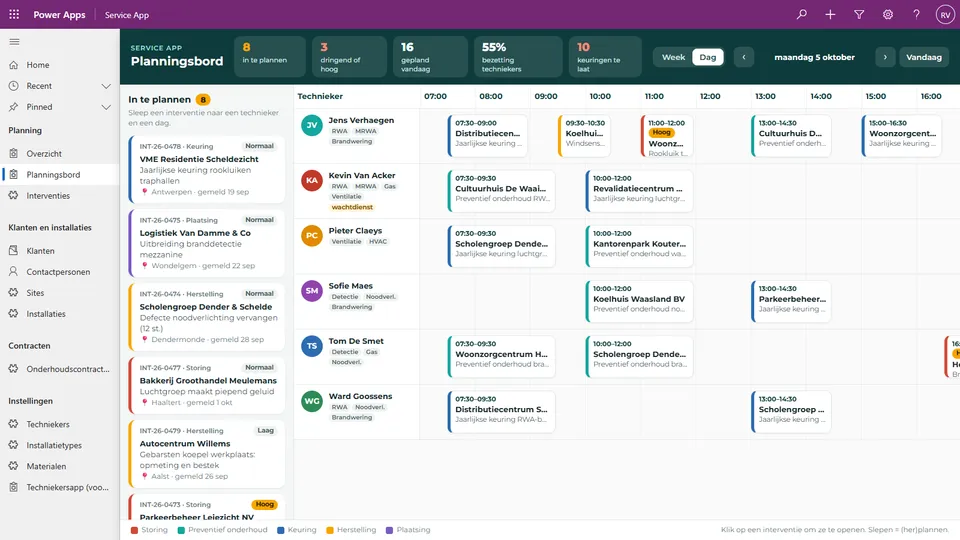
The team's day on a timeline. Drag to schedule or reschedule.
3
The technician starts the day
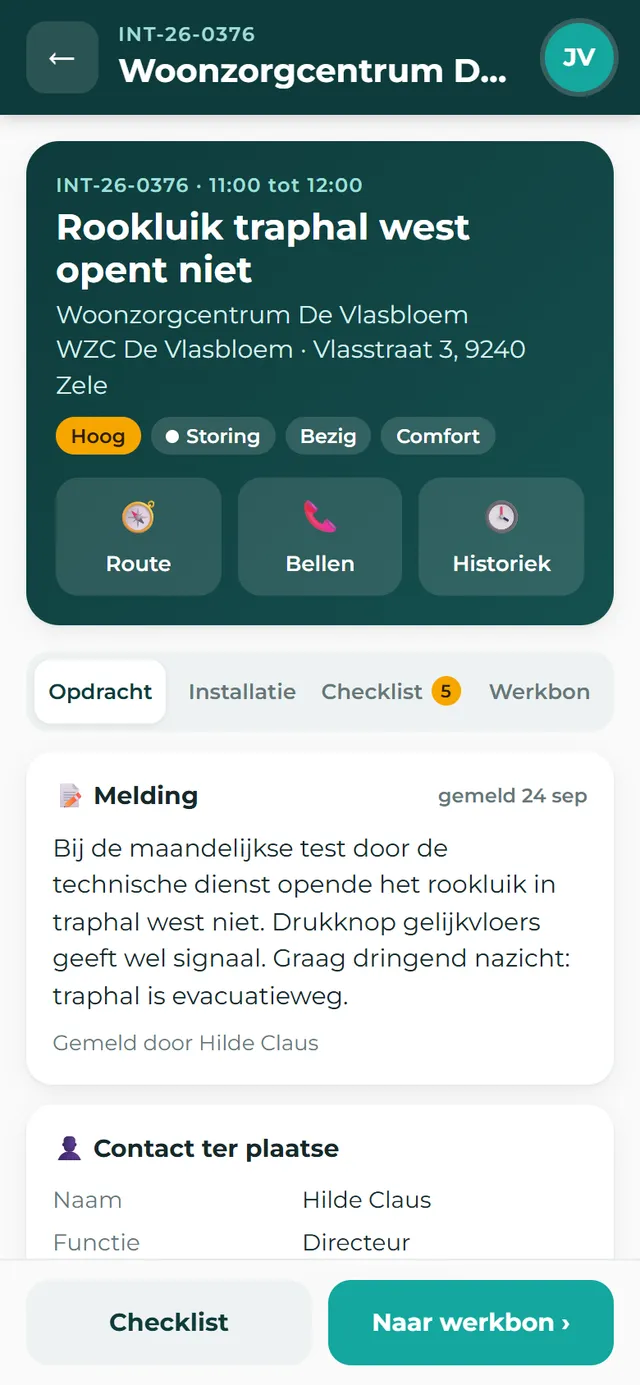
On their phone, the technician sees the day's jobs in order, with address, distance, type, and priority. A priority breakdown stands out. No logging in to a second system, no schedule that still has to be sent out: whatever the scheduler drags onto the board shows up here.
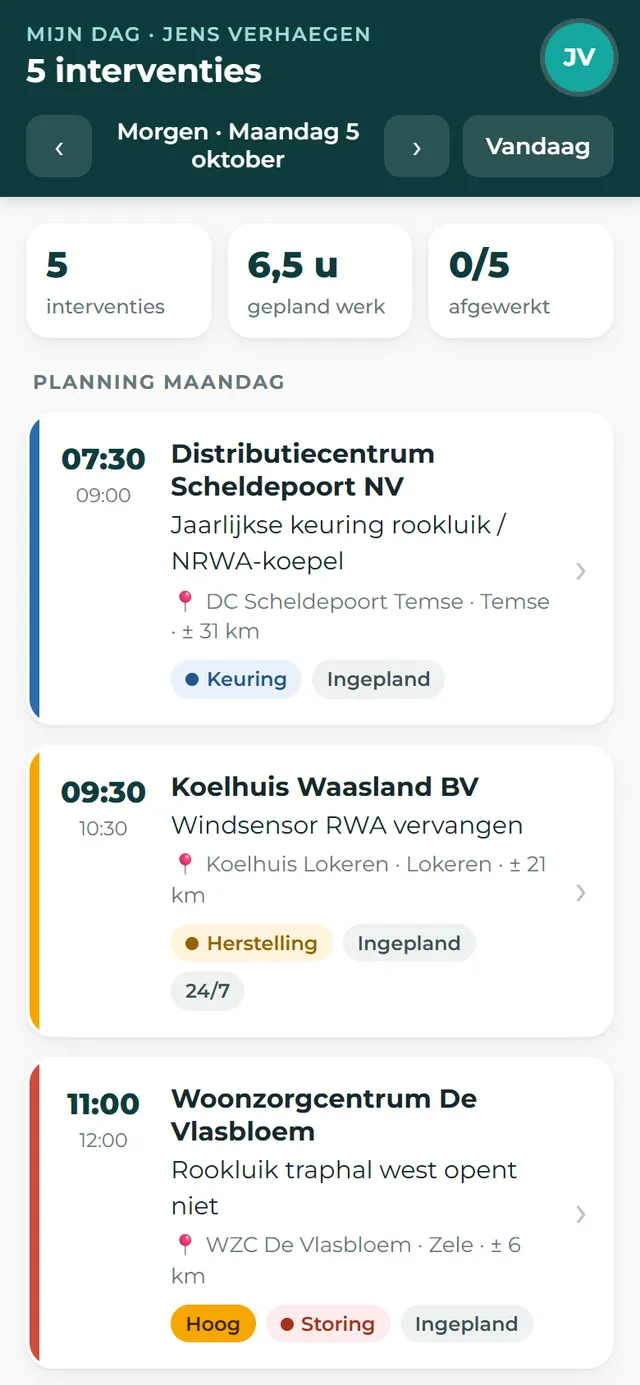
My day: five jobs, 6.5 hours of scheduled work.
4
Everything about the installation, on site
Each job shows the customer's report, the on-site contact, and practical info such as where the key is or how to get onto the roof. The Installation tab shows the make, model, serial number, installation date, and the history of previous visits. Directions and calling are one tap away. On a tablet, the schedule and the job sit side by side.
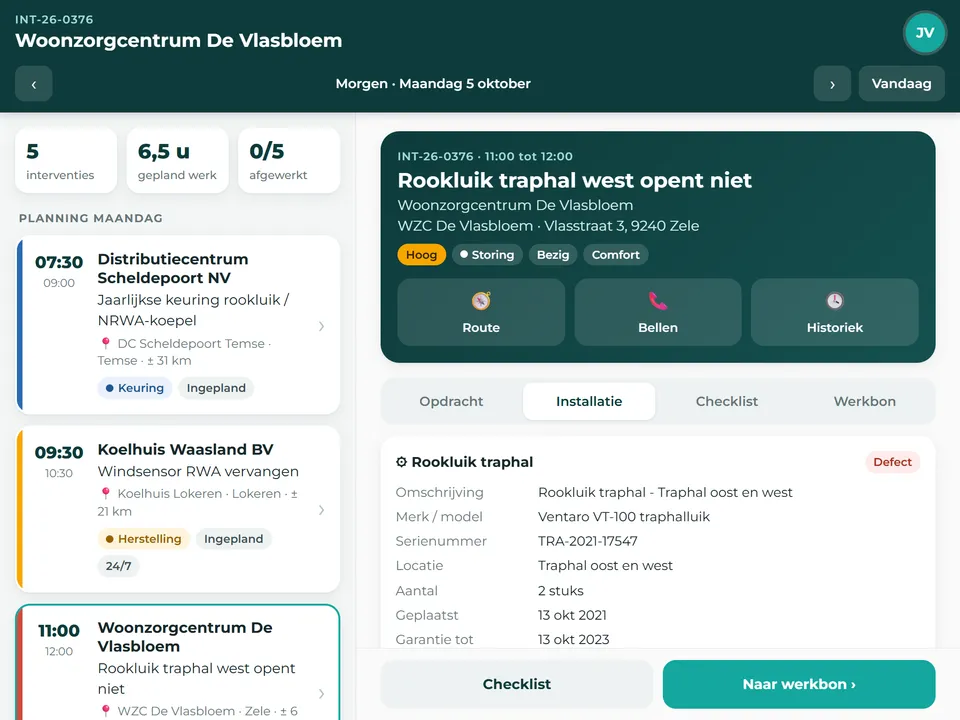
On the tablet: the day on the left, the installation on the right.
5
A checklist for each type of installation
Each type of installation has its own checkpoints. The technician taps OK, Not OK, or Not applicable, enters readings where needed, and when something is Not OK, the app asks what's wrong. The buttons are big, because you're working with gloves on, up a ladder. Everything the technician enters is saved on the device right away, so nothing gets lost if the app is closed for a moment.
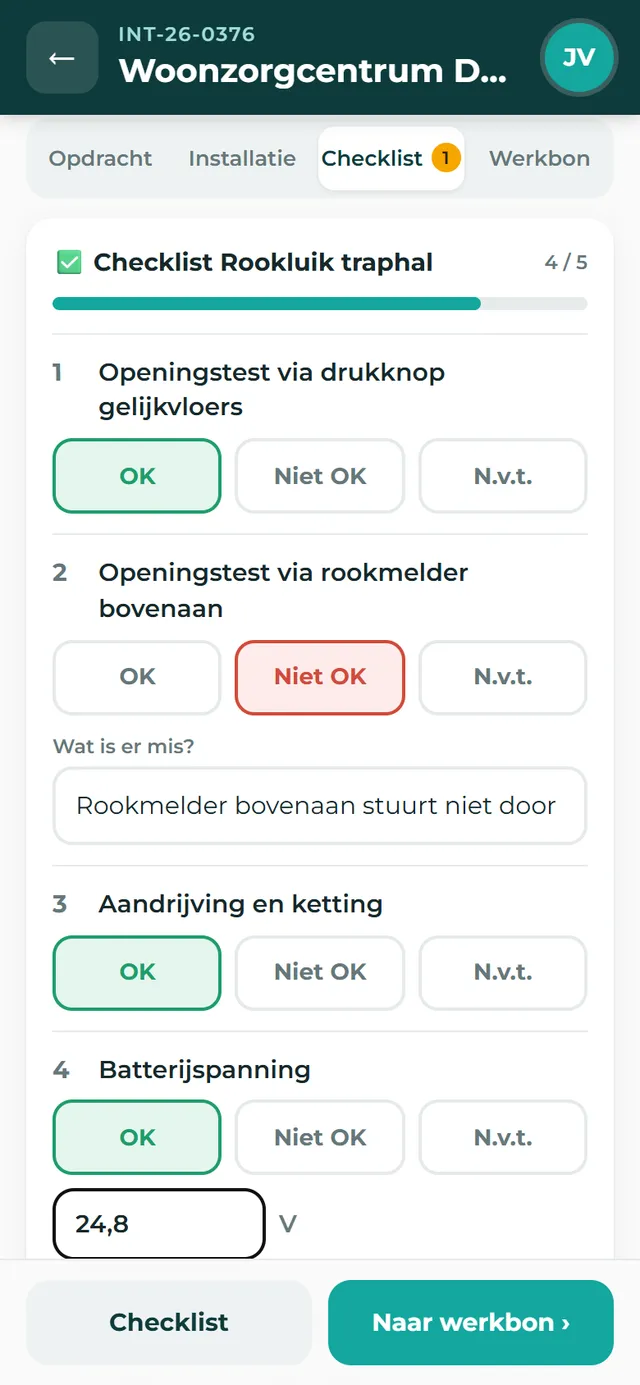
Checkpoints with large buttons and a question for every issue.
6
The work order is completed and signed on site
Findings, photos, materials from the van, and work hours all come together on the work order. The customer signs on the screen and adds their name. If a part is needed that isn't in the van, the technician sets the job to “waiting for parts” instead of closing it.
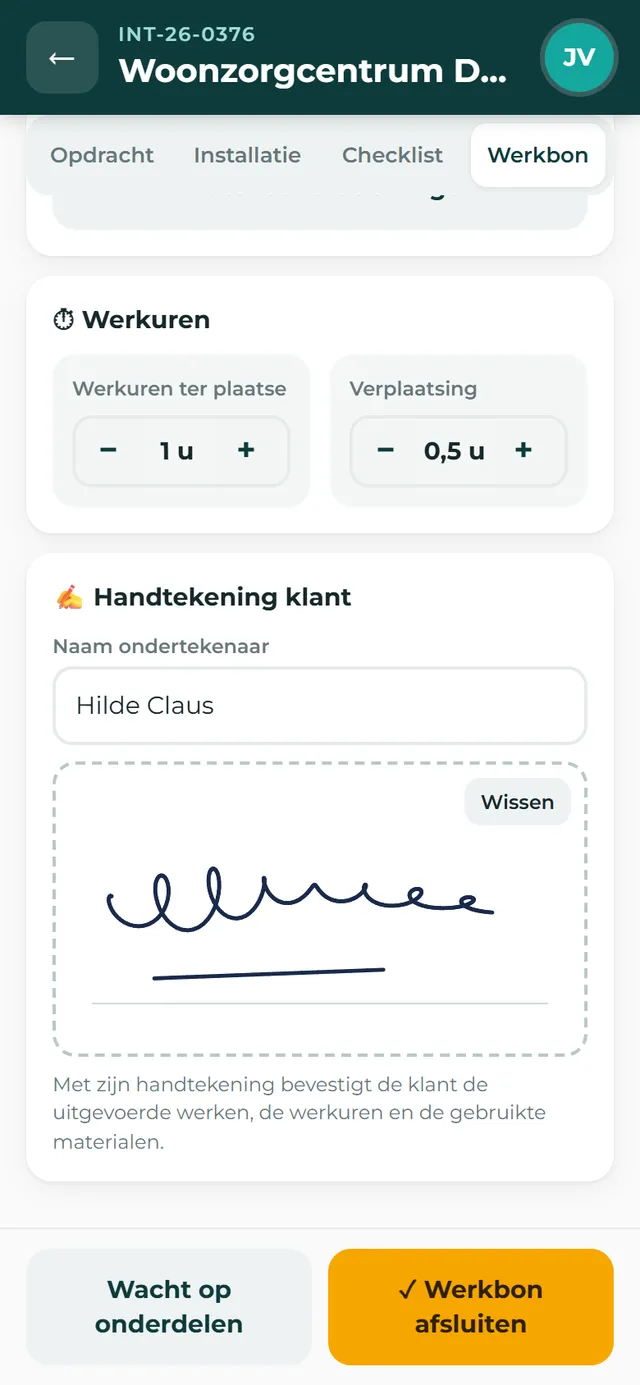
Hours, materials, and the customer's signature, before the technician leaves.
7
The back office sees the work order right away
As soon as the technician closes the job, the complete work order appears on it in the back office: the checklist with any issues, findings, photos, materials with prices, hours, and the signature. The installation gets its new inspection date and status. If there was an issue, the job is flagged “follow-up needed” and shows up in the follow-up list.
The app is designed to then email the work order to the customer as a PDF and feed it into invoicing.
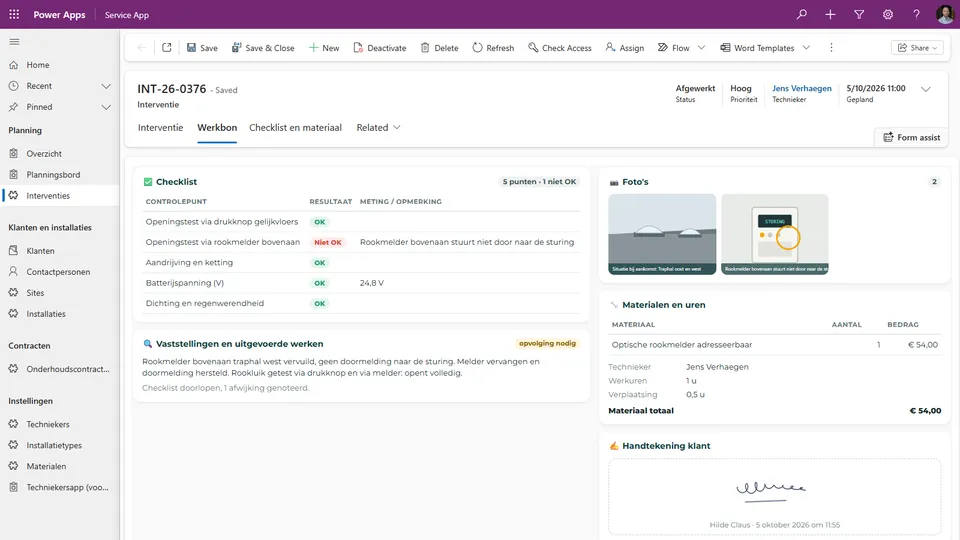
Closed on site, visible at the office. Nothing to retype.
What it changes
Three things that change
No more work orders to retype
The work order is filled out where the work happens. Once the technician closes it, it's ready for review and billing.
Inspections nobody forgets
Every installation knows its inspection frequency and next due date. Anything overdue or coming up soon is on the dashboard, not in someone's head.
Technicians know what they're walking into
The call details, access info, equipment, and previous visits are on their phone before they ring the doorbell. Fewer calls to the office, fewer return visits.
Under the hood
Why not an off-the-shelf scheduling tool
A scheduling tool knows appointments and technicians. A maintenance company thinks in customers, sites, installations, and inspection deadlines, and that model is at the core here. Every service call is tied to an installation, every installation to a site and possibly a contract. So the system knows which checklist applies, when the next inspection is due, and what was found last time.
The back office works in a model-driven app on Microsoft Dataverse, the technicians in a web app built for thumbs and small screens. Both read and write the same data, so there's no syncing and no second version of the truth. What would be a custom project in an off-the-shelf package is simply the starting point here.
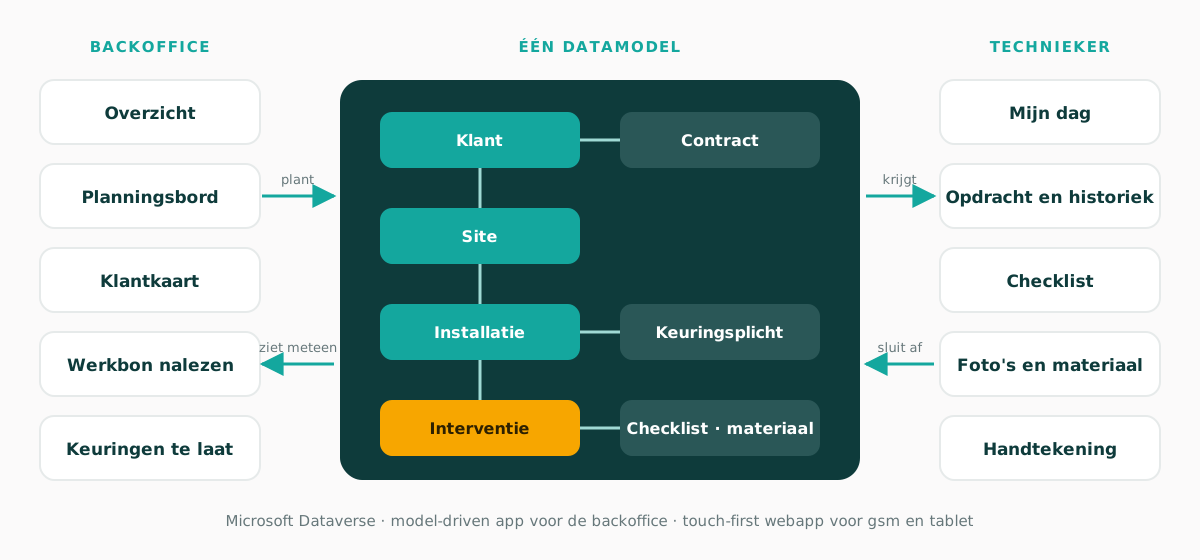
One data model, two ways of working.
Who it's for
Familiar to any company with technicians in the field
Any company that installs, maintains, or repairs equipment at customer sites runs into the same pattern: routine maintenance, breakdowns that need fixing today, technicians who need all the info on site, and a work order that's ready for billing right away. The product varies, but the process is the same.
Does this sound like your scheduling?
We'd be happy to give you a live demo and look together at what fits the way you work and what doesn't.
Request a no-obligation demoNo strings attached. We'll show you the application live.

