
Profility Job Site Planner
Job site scheduling for construction and renovation
Ditch the color-coded spreadsheet: one schedule for the office, project managers, and crews
A job site scheduling app on Microsoft Power Apps for construction and renovation companies with their own crews and subcontractors. The scheduler sees every site, every technician, and every absence on one board. Project managers put together their crews and check in on site. Technicians see on their phone where they need to be tomorrow, who they're working with, and what needs to get done.
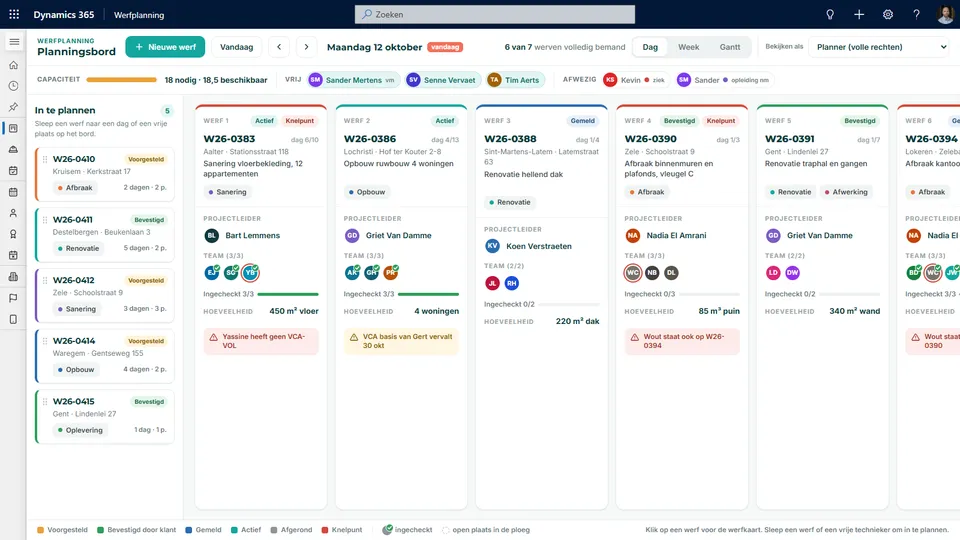
The challenge
Job site scheduling is a puzzle of people, days, and certifications
The schedule lives in a spreadsheet with color codes only the scheduler really understands
Project managers work from their own copy, updated by hand
Every evening, a photo of the schedule gets passed around the group chat
Job details are retyped from the ERP
Check-ins are a checkmark on paper
A construction or renovation company has dozens of job sites running at once, from a two-day bathroom remodel to a three-week structural build. Every site needs a crew of a certain size, often with certifications like VCA safety or aerial lift training, and a notification to the authorities before work starts. Meanwhile someone's out sick, on vacation, or at a half-day training, and a subcontractor fills in.
The scheduler tracks all of this in a spreadsheet that has grown over the years. The colors mean something, but nobody ever wrote down what. Project managers keep their own version, technicians get a photo of the schedule in the evening, and you only find out on site who's double-booked or has an expired certificate.
This demo shows what it looks like when everyone works from the same schedule: the scheduler on a big screen, the project manager seeing only their own sites, and the technician on their phone.
How it works
Seven screens, from unscheduled job to checked-in crew
1
Drag to schedule
On the left are the job sites that don't have a date yet, with work type, duration, and crew size. The scheduler drags one to a day, and the job site immediately gets a start and end date, skipping weekends and holidays. Everyone who's still available that day appears at the top of the day board; drag a technician to a job site and they're on the crew. If someone has half a day free, they get scheduled for half a day.
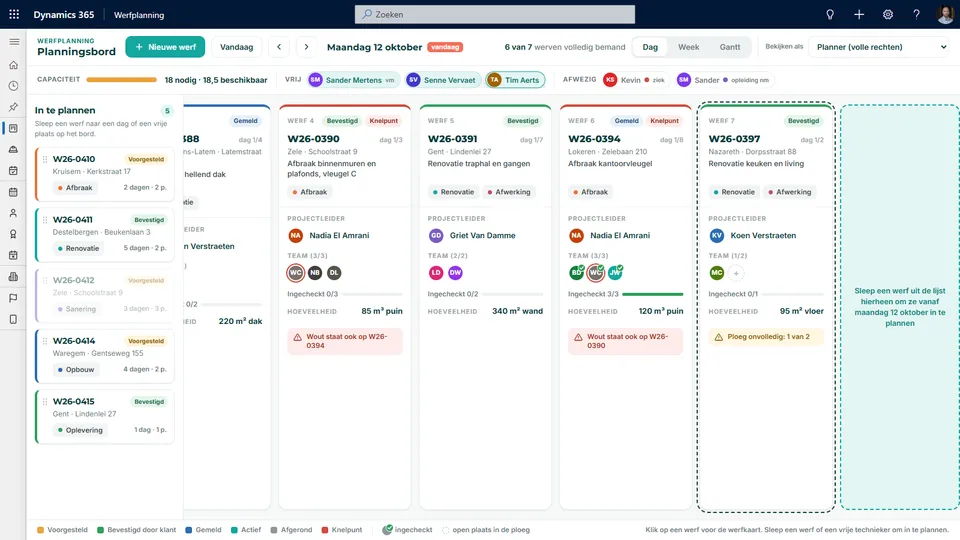
Drag job sites and people, and the schedule does the math.
2
The whole week on one board, capacity included
In the week view, each job site appears as a bar across the days it runs, with the team members for each day. At the top of each day, you see how many people the job sites need compared to how many are available, after subtracting anyone who's sick, on leave, or in training. If a day is tight or short-staffed, it shows up in red at the top, before anyone heads out to the site. Half days count as half, including a toolbox talk on Friday morning.
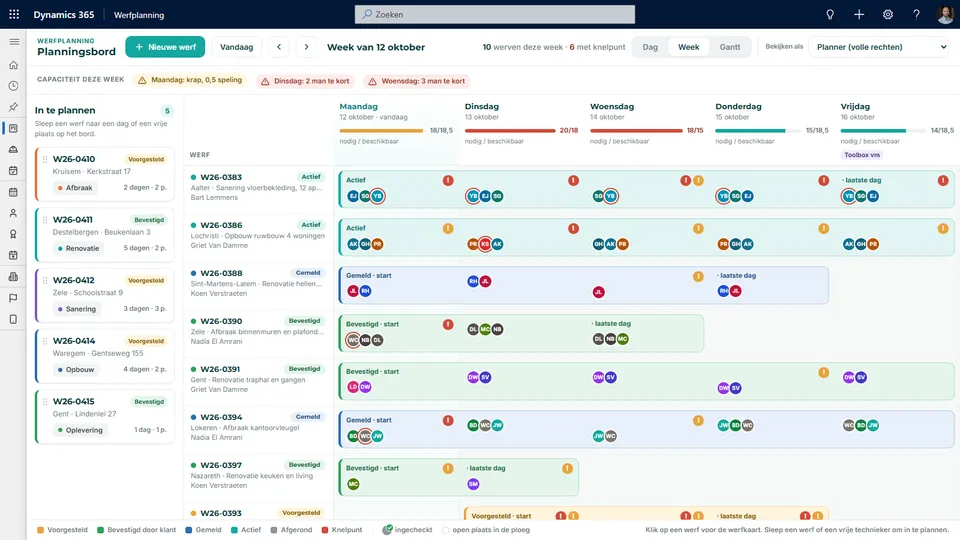
Which job site runs when, who's on it, and which day is too tight.
3
Weeks ahead in the Gantt chart
The Gantt chart shows six weeks, grouped by project manager. Proposed job sites are hatched until the customer confirms; confirmed and notified job sites appear in their own color. At the top, you see the margin for each day: how many people are left over, or how many you're short. An exclamation mark on a bar means there's a bottleneck somewhere on that job site.
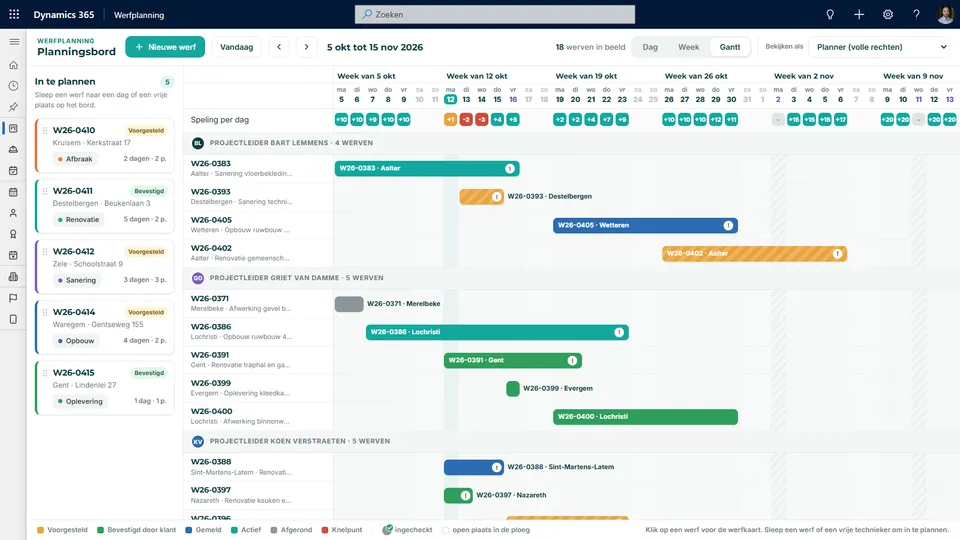
Six weeks ahead, with the daily margin on top.
4
Everything about a job site on one card
Clicking a job site opens its job site card. There, the scheduler moves the status one step forward: proposed, confirmed by the customer, notified, active, completed. Completed is also the signal for invoicing. The team is listed for each day, showing who has already checked in. When you add a team member, you pick from a list that shows who's available, who's already on another job site, and who doesn't have the required certificate. The card also shows the work types, quantity, check-in code for Checkin@work, and the job site notes.
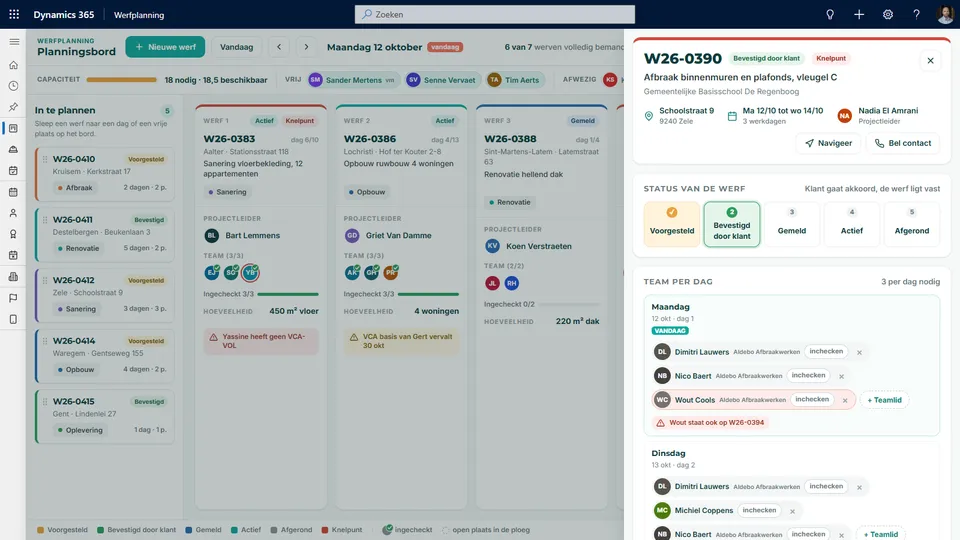
Status, daily team, and check-in on one card.
5
Each project manager sees their own job sites
A project manager opens the same schedule but only sees the job sites they're responsible for. They put together their team, see who's available, and check people in, but the status and the dates stay with the scheduler. No more copies that have to be synced by hand: it's the same schedule, seen through a different lens.
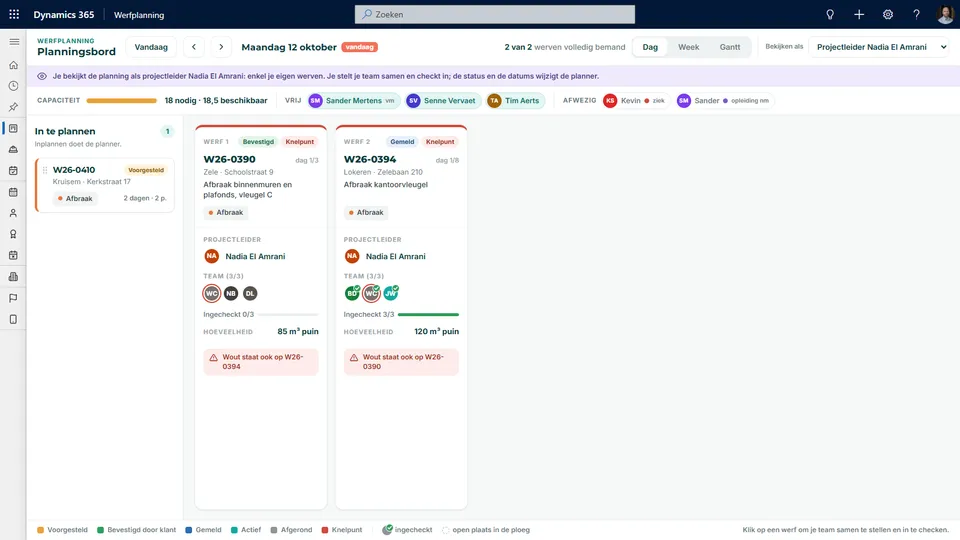
The same schedule, with only your own job sites.
6
On the job site: my week on my phone
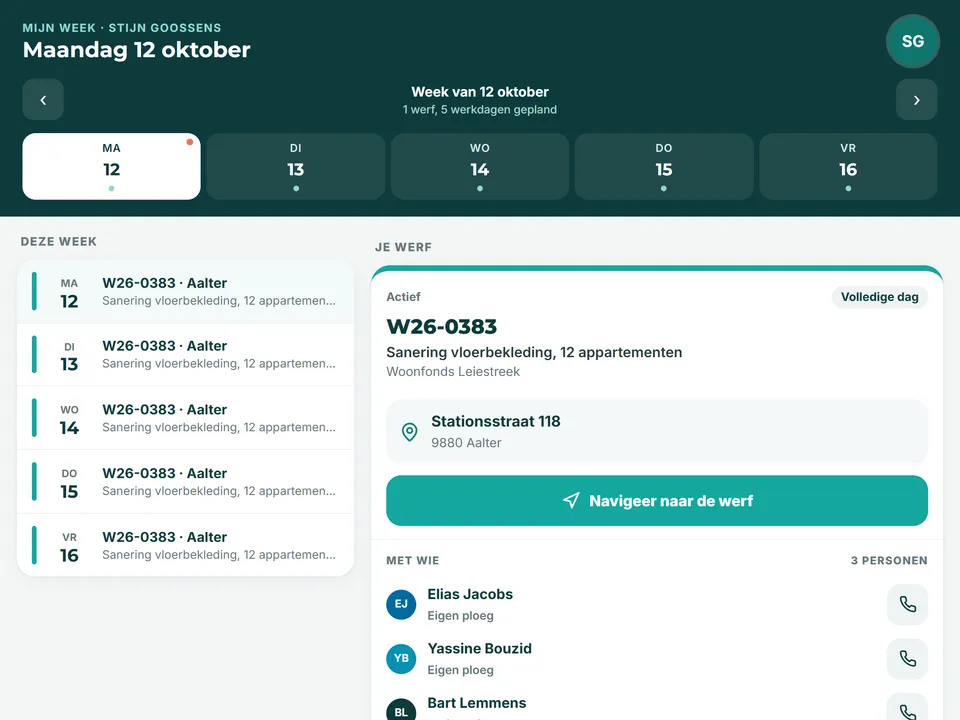
The technician opens My Week and sees where to be each day: the address with a button to navigate, who he's working with and their phone numbers, the project manager, the work and the quantity, the job site notes, and how to get in. That way, the app replaces the photo in the group chat.
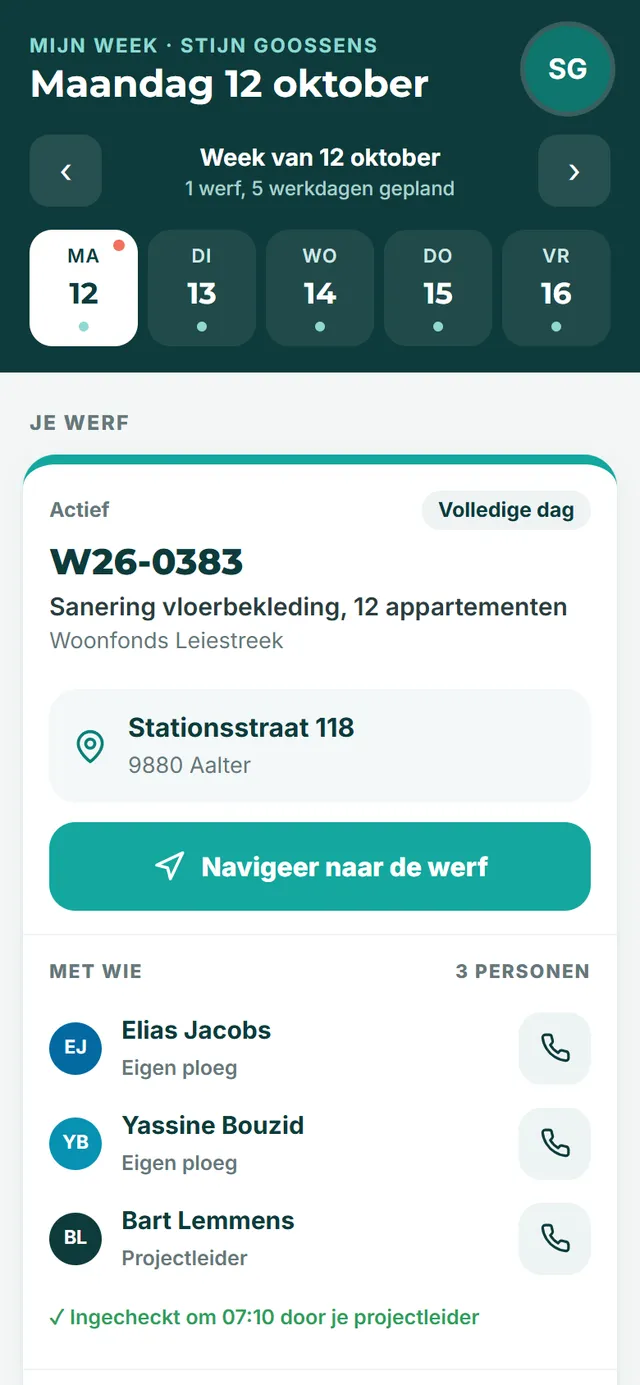
Where, with whom, and what, right on your phone.
7
The project manager checks in the crew
In the same app, the project manager sees the day's job sites, with the team for each one. He taps each team member who has checked in, and it shows up on the board and on the job site card at the office right away. No more check marks on paper that have to be retyped later.
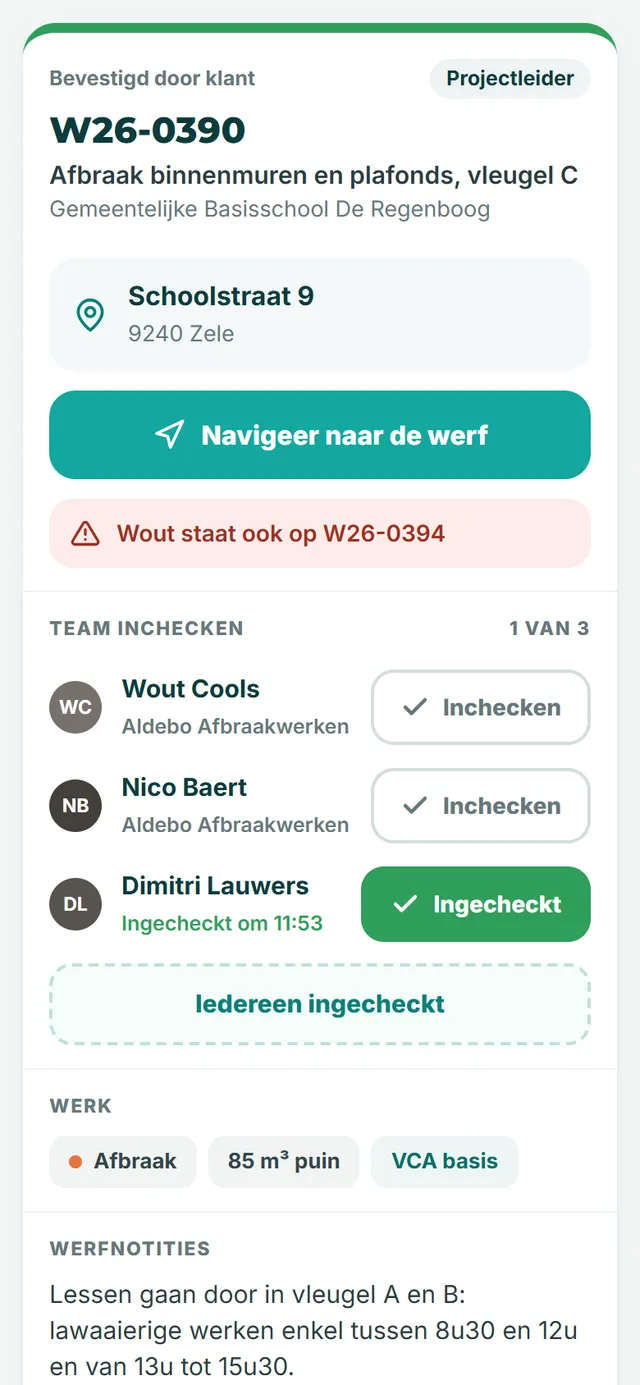
Check in on site, visible at the office right away.
What it changes
Three things that change
One schedule instead of three versions
Schedulers, project managers, and technicians all look at the same data. When the scheduler drags something, the project manager and the crew see it on their phones right away.
Catch conflicts before they show up on site
Double-booked people, a missing or expired certification, someone out sick who's still scheduled, a day without enough hands: the board flags it in red while there's still time to make changes.
A status everyone understands
No color codes only the scheduler knows. Proposed, confirmed, notified, active, completed, with a legend right on the screen. Completed is the trigger for billing.
Under the hood
Why not an off-the-shelf scheduling tool
A standard tool books appointments in calendars. A construction company schedules job sites over multiple days, with crews that can change daily, half days, certifications required for certain jobs, subcontractors who fill in, and a legal notification before work starts. That model is at the core here: job site, daily assignment, technician, certification, and absence.
The schedule runs on Microsoft Dataverse. The scheduling board, site card, and availability live in a model-driven app for the office, while My Week is built for thumbs and small screens. Everything reads and writes the same data. The app is designed to pull job details from the ERP instead of retyping them, and to kick off billing once a site is completed.
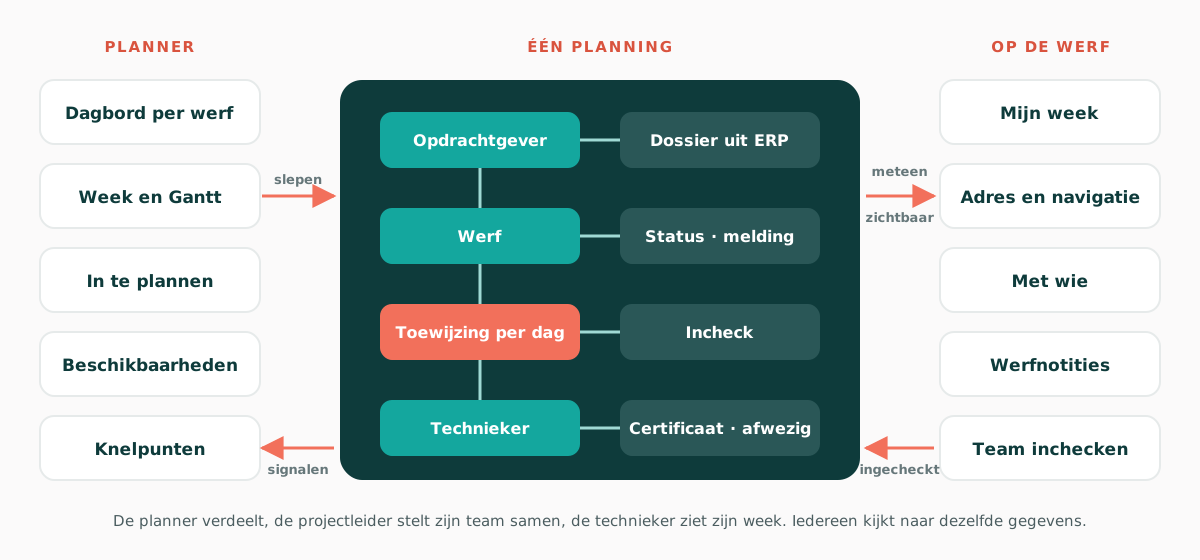
One schedule, three ways to see it.
Who it's for
Familiar to any company with crews in the field
Any company that works on job sites with its own crews and subcontractors deals with the same things: jobs lasting anywhere from a day to several weeks, crews that change daily, mandatory certifications, absences that throw everything off, and technicians who need to know each morning where they're headed.
Does this sound like your job site scheduling?
We'd be happy to give you a live demo and see together how your job sites, crews, and color codes fit in.
Request a no-obligation demoNo strings attached. We'll show you the application live.

